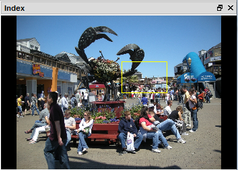
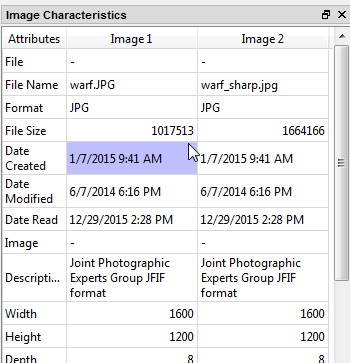
|
pixDiff ver.1 |
||||||||||||||||||||||||
| pixDiff is
developed to visually compare two images on computer
monitor and find the deffirence between two images.
|
||||||||||||||||||||||||
| File: Selection and Display | ||||||||||||||||||||||||
 Choose
two image files. Two images are shown in one of
following forms to compare them visually and see the
difference. Display mode can be selected from menu and
switched by mouse click or F5 key. Choose
two image files. Two images are shown in one of
following forms to compare them visually and see the
difference. Display mode can be selected from menu and
switched by mouse click or F5 key. Switch
between colors; Full color, red, green or blue channel
from menu or F4 key. Switch
between colors; Full color, red, green or blue channel
from menu or F4 key.
|
||||||||||||||||||||||||
| Control
Area |
||||||||||||||||||||||||
|
||||||||||||||||||||||||
| Interface | ||||||||||||||||||||||||
 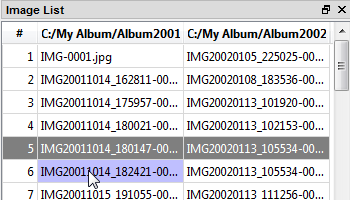 Select two
folders. Instead of chooseing two images, you can choose
two folders which contain a list of images. In this case
all images in two directories are selected, sorted by
name and shown on the bottom of the control area. Select two
folders. Instead of chooseing two images, you can choose
two folders which contain a list of images. In this case
all images in two directories are selected, sorted by
name and shown on the bottom of the control area.List of all supported images in the selected directories are shown on the bottom of the control area. By double-clicking on the pair of the images, these two images are selected and shown on the canvas.  When
two directories are selected and a pair of images is
shown, by choosing 'Next" or 'Previous' froim the menu
'Frame', or by pressing left or right arrow,
next or previous pair of images is shown. When
two directories are selected and a pair of images is
shown, by choosing 'Next" or 'Previous' froim the menu
'Frame', or by pressing left or right arrow,
next or previous pair of images is shown. You can
also choose two images files or two directories on the
file explorer, drag and drop them on any part of
the pixDiff to begin the display of two
images or two sequences. You can
also choose two images files or two directories on the
file explorer, drag and drop them on any part of
the pixDiff to begin the display of two
images or two sequences. |
||||||||||||||||||||||||
| Image Display | ||||||||||||||||||||||||
Images shown
on the central canvas cxan be manipulated in various way
using menu, toolbar, mouse and keyborad; Drag
around the image by moving the mouse with right button
pushed down or pusing number keys (12346789) to move
each direction. Drag
around the image by moving the mouse with right button
pushed down or pusing number keys (12346789) to move
each direction. Zoom up the image by rotating the mouse
wheel upward or pressing '+' on keyboard. Zoom up the image by rotating the mouse
wheel upward or pressing '+' on keyboard. Zoom down the image
by rotating the mouse wheel downward or pressing '-' on
keyboard. Zoom down the image
by rotating the mouse wheel downward or pressing '-' on
keyboard. Press '5'
to show the entire image. Press '5'
to show the entire image. Press 'Home' or '0'
to show the image at thre real scale i.e. 1:1 on
computer monitor. Press 'Home' or '0'
to show the image at thre real scale i.e. 1:1 on
computer monitor. F11: to
switch to full screen, press it again to return to the
program window. F11: to
switch to full screen, press it again to return to the
program window. F4: to
toggle the way to show the image. F4: to
toggle the way to show the image.  F3" to
toggle to color to show; RFB, red, green and blue. F3" to
toggle to color to show; RFB, red, green and blue. Property
setting. Property
setting. |
||||||||||||||||||||||||
| Notes |
||||||||||||||||||||||||
|
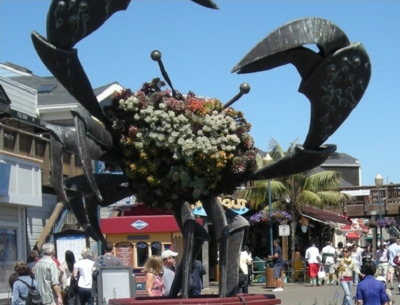
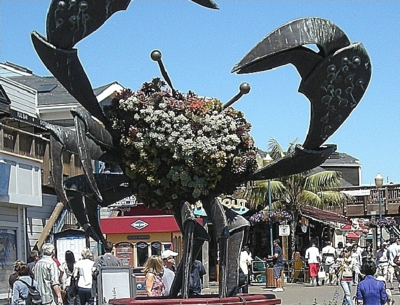
 Fist
image.
Fist
image. Second
image.
Second
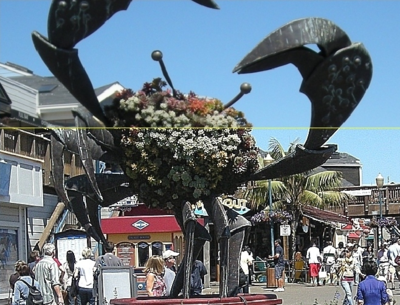
image. Compare
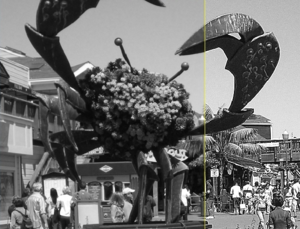
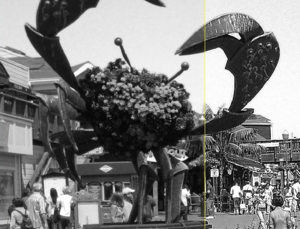
two images with windshield wiper(Horontal).
Compare
two images with windshield wiper(Horontal).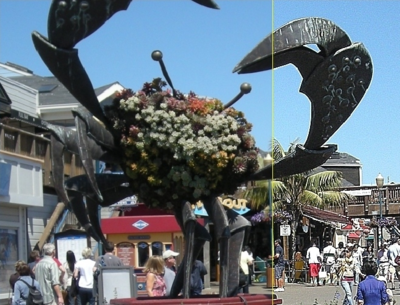
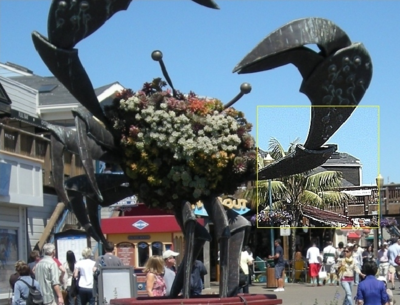
 Compare
two images with windshield wiper(Vertical).
Compare
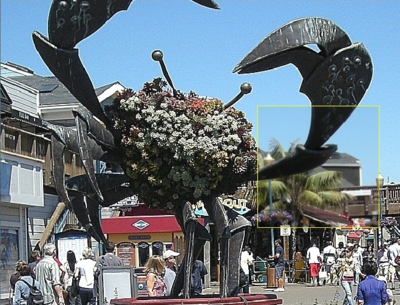
two images with windshield wiper(Vertical). Show the first and
second images inside and outside of the
scope(rectangular area).
Show the first and
second images inside and outside of the
scope(rectangular area). Show the second and first
images inside
and outside of the scope(rectangular area).
Show the second and first
images inside
and outside of the scope(rectangular area).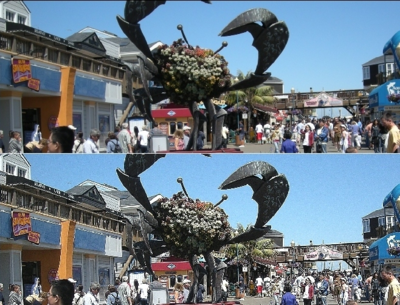
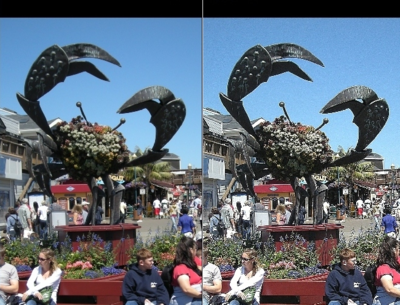
 Split the screen vertically
for two images.
Split the screen vertically
for two images. Split the screen
horizontally for two images.
Split the screen
horizontally for two images.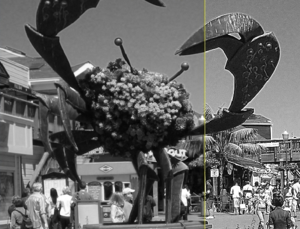
 Red
channel.
Red
channel. Green
channel.
Green
channel. Blue
channel.
Blue
channel.